
Verification
What a verification page tells you
Every certificate issued with Atharix carries a QR code and a short link. Opening it shows the record as the issuing organization keeps it today, not a copy that can go out of date.
How to check a certificate
- 1
Scan the QR code or open the link
Use any phone camera. The link starts with the Atharix verification address.
- 2
Read the status first
The status at the top says whether the record is valid, expired, revoked or replaced.
- 3
Compare the details
Check the name, programme and issuing organization against the document you were given.
What each status means
- Valid
- The organization issued this record and has not revoked it.
- Expired
- The record was issued but its validity period has ended.
- Revoked
- The organization withdrew the record. Its PDF is no longer offered.
- Replaced
- A newer record replaced this one. The page links to it when the organization allows.
- Not public
- The record exists but the organization keeps its details private.
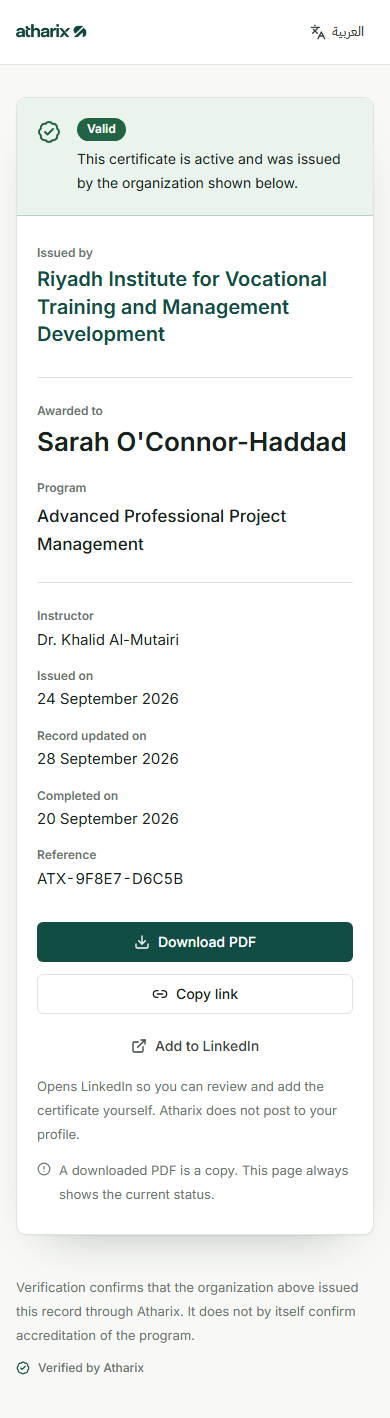
Screens from the product with sample data. People and organizations shown are fictional.
What verification does not claim
Verification confirms that the named organization issued the record through Atharix. It does not mean Atharix or any authority accredited the training, and a downloaded PDF is only a copy: the page is always the current source.
Only what is needed
Public pages show the name, programme, organization, dates and status. Contact details, notes and internal references never appear. Pages are not listed by search engines.